HexClaw Docs
Model Providers
Configure multiple AI providers, store API keys locally, and manage model availability.
Supported Providers (14 total)
| Provider | Default Base URL | Representative Models | Key Format |
|---|---|---|---|
| OpenAI | api.openai.com/v1 | GPT-4o, o-series, and similar models | sk-... |
| DeepSeek | api.deepseek.com/v1 | DeepSeek family | sk-... |
| Anthropic | api.anthropic.com/v1 | Claude family | sk-ant-... |
| Google Gemini | generativelanguage.googleapis.com | Gemini family | AIza... |
| Alibaba Qwen | dashscope.aliyuncs.com | Qwen family | sk-... |
| ByteDance Ark | ark.cn-beijing.volces.com | Doubao / Ark-compatible models | ep-... |
| Zhipu AI | open.bigmodel.cn/api/paas/v4 | GLM-4 family | sk-... |
| Kimi (Moonshot) | api.moonshot.cn/v1 | Moonshot family | sk-... |
| Wenxin Yiyan (Baidu) | aip.baidubce.com | ERNIE family | sk-... |
| Tencent Hunyuan | hunyuan.tencentcloudapi.com | Hunyuan family | sk-... |
| iFlytek Spark | spark-api-open.xf-yun.com/v1 | Spark family | sk-... |
| MiniMax | api.minimax.chat/v1 | abab family | sk-... |
| Ollama | localhost:11434/v1 | Llama / Qwen / Mistral / DeepSeek | Not required |
| Custom | User-defined | User-defined | User-defined |
Note: The model names above are examples only. The actual list available in HexClaw depends on your provider account, region, and what the provider API returns.
Add a Provider
- Go to Settings → Model Providers
- Click "Add Provider"
- Select a provider type such as OpenAI or DeepSeek
- Enter the API key, which is stored securely through Tauri's native key store
- Optionally override the base URL for a proxy or private deployment
- Save the provider
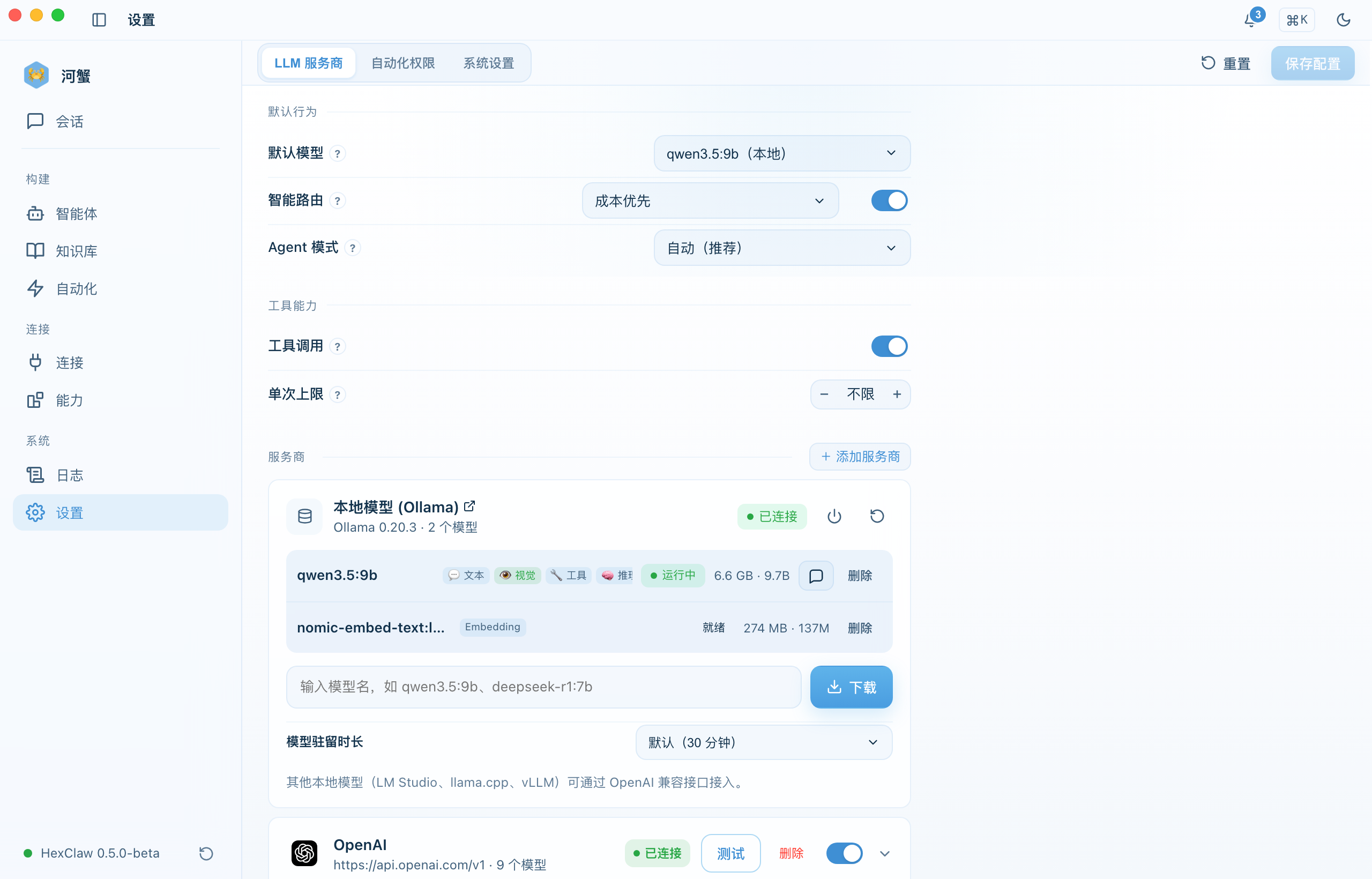
Capability Labels
Each model advertises the capabilities it supports:
- text - standard chat and text generation
- vision - image understanding for GPT-4o, Claude, Gemini, Qwen-VL, Doubao Vision, and LLaVA
- video - video understanding for Gemini 2.5 and 2.0
- audio - audio understanding for Gemini 2.5 and 2.0
- code - code generation on text-capable models
Local Ollama Setup
Ollama lets you run AI models entirely offline:
# Install Ollama
brew install ollama    # macOS
# Or download it from ollama.com

# Start Ollama and pull models
ollama serve
ollama pull llama3.1
ollama pull qwen2.5
ollama pull deepseek-r1
In HexClaw, add Ollama as a provider with base URL http://localhost:11434/v1. No API key is required.
API Key Security
Security: API keys are stored through Tauri's secure storage integration and are not written to disk in plaintext.
Test Connection
Each provider card has a ⚡ test button. Clicking it verifies:
- Whether the backend engine is running
- Whether the API configuration is accessible
Test results are displayed inline on the provider card (green ✓ or red ✕).
Automatic Model Selection
The first option in the model dropdown is Auto (automatic selection with failover). When selected:
- The default provider's default model is used first
- If a request fails, HexClaw automatically switches to the next available provider
- Ideal for scenarios requiring high availability