Getting Started
Install HexClaw, configure your first provider, and send your first message in under five minutes.
System Requirements
| Platform | Minimum Requirement |
|---|---|
| macOS | macOS 12 Monterey or later, Apple Silicon or Intel |
| Windows | Windows 10 (1809+) or later, x64 |
| Linux | Ubuntu 20.04+ or Fedora 36+, x64 |
Installation
Option 1: One-line install (macOS, recommended)
curl -fsSL https://raw.githubusercontent.com/hexagon-codes/hexclaw-desktop/main/install.sh | bashOption 2: Homebrew (macOS)
brew tap hexagon-codes/tap && brew install --cask hexclawOption 3: Download a release build
Visit GitHub Releases and choose the package for your platform (current version v0.4.9):
- macOS:
.dmg- drag it into Applications - Windows:
.exe(NSIS installer) - double-click to install - Linux:
.deb,.AppImage, or.rpm
Option 4: Build from source
git clone https://github.com/hexagon-codes/hexclaw-desktop.git
cd hexclaw-desktop
pnpm install
pnpm tauri devWelcome Wizard
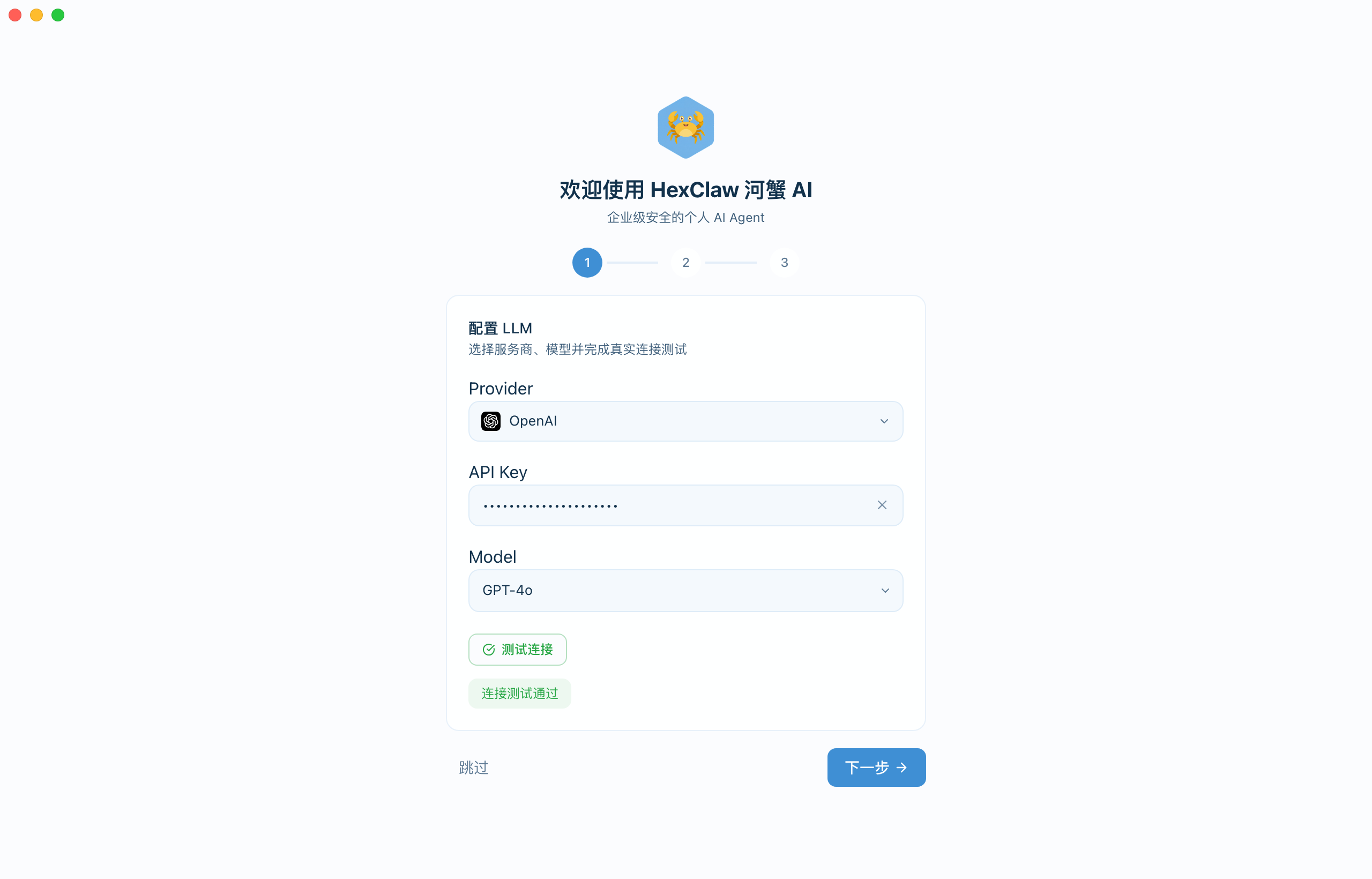
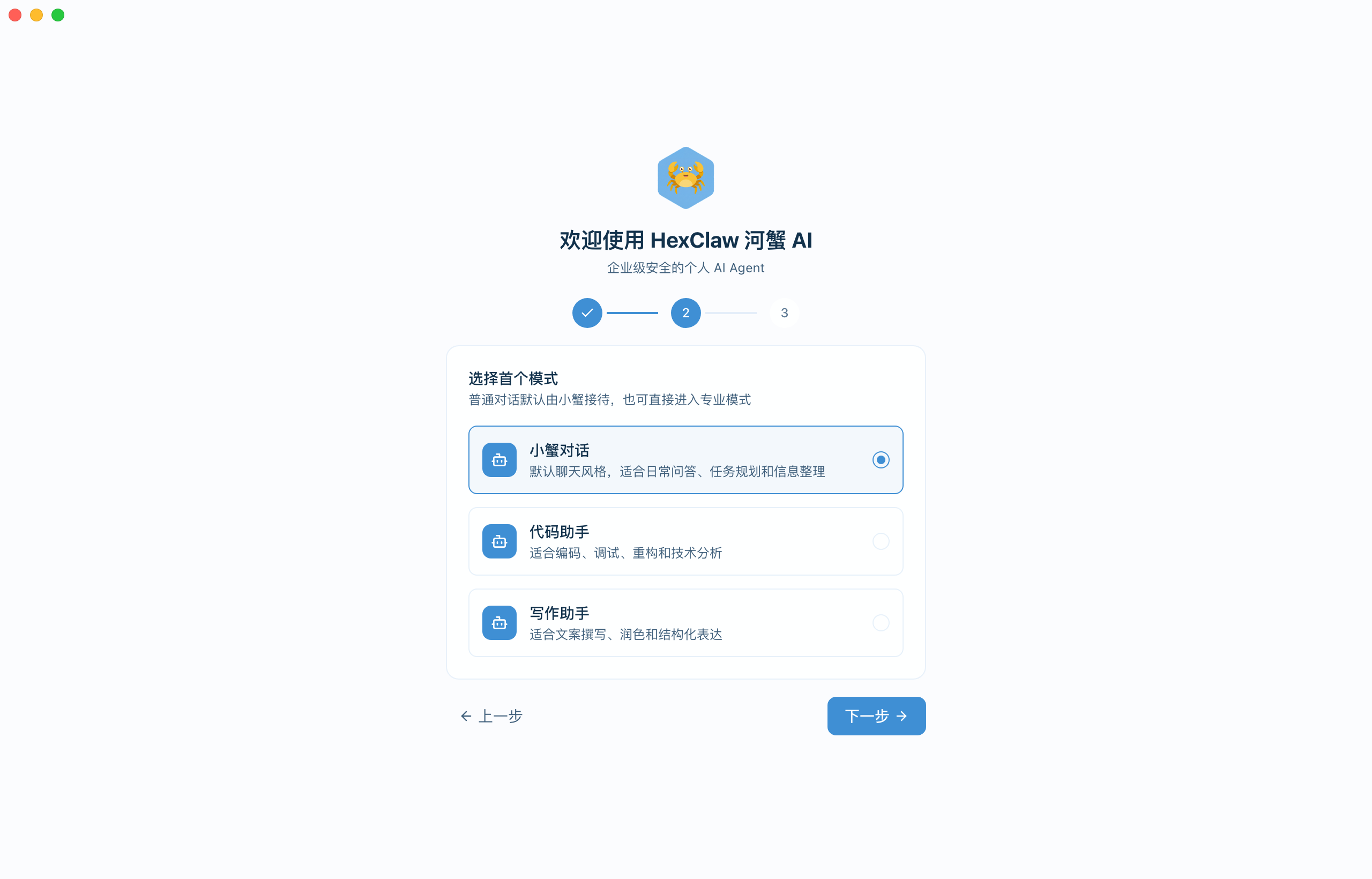
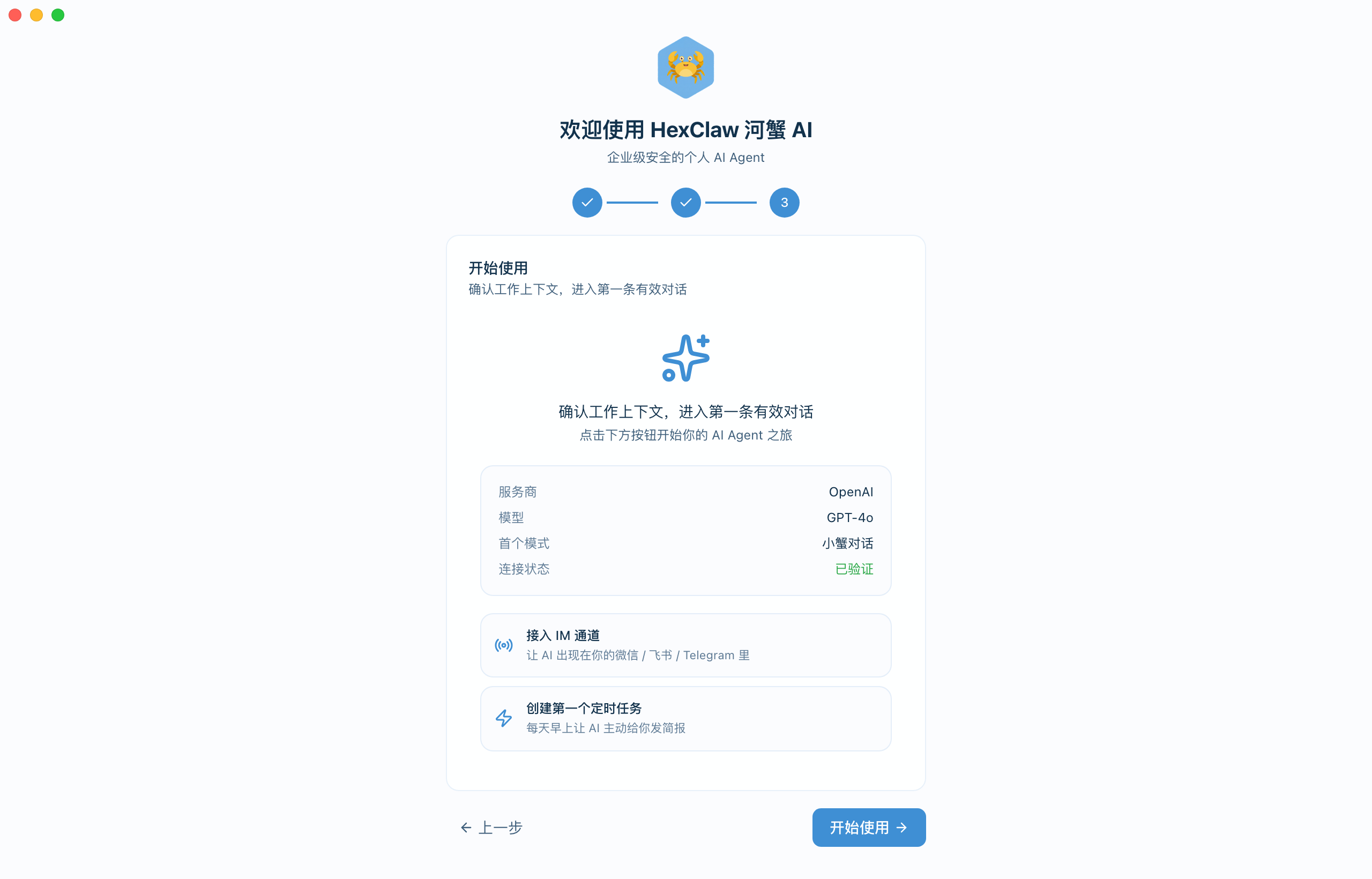
When you open HexClaw for the first time, a 3-step setup wizard launches automatically:
- Choose an AI Provider — select a provider and enter your API key
- Select a Default Model — pick a model from the provider's model list
- Test Connection — verify that the backend engine is running correctly (can be skipped)
After completing the wizard, you are taken directly to the chat page. You can change the configuration later under Settings → Model Providers.
First-Time Setup
1. Configure an AI provider
Open the app and go to Settings → Model Providers. Add at least one provider:
- OpenAI - enter an API key (
sk-...) to connect GPT-4o, o-series, and related models - DeepSeek - add a key for DeepSeek family models
- Anthropic - connect Claude family models
- Google Gemini - connect Gemini family models, including variants with video and audio support
- Alibaba Qwen - connect Qwen family models, including vision-capable variants
- ByteDance Ark (Doubao) - connect Doubao and other Ark-compatible models, including vision support
- Ollama (local) - no API key required for local Llama, Qwen, Mistral, or DeepSeek models
- Custom - any provider compatible with the OpenAI API format
Configuration file example
HexClaw also supports initialization via a YAML configuration file:
# ~/.hexclaw/hexclaw.yaml
server:
  host: 127.0.0.1
  port: 16060

llm:
  default: openai
  providers:
    openai:
      api_key: sk-your-key-here
      base_url: https://api.openai.com/v1
      model: gpt-4o

platforms:
  feishu:
    enabled: false
    app_id: ""
    app_secret: ""
2. Choose a default model
Mark one model as the default chat model in the provider configuration.
3. Send your first message
Open the Chat page, type any prompt into the input box, and press Enter. HexClaw supports streaming responses so you can watch output arrive in real time.
First Troubleshooting Steps
If the app launches but you still cannot chat successfully, check these three items first:
- Open Settings → Model Providers and run Test Connection on the active provider
- Open the Logs page and confirm the Engine is running and default port
16060is free - If you still see a blank window, 401/403 errors, or MCP failures, go straight to the FAQ
Application Architecture
HexClaw Desktop is built on a Tauri v2 + Vue 3 + Go sidecar stack:
- Frontend: Vue 3 + TypeScript + Pinia + Tailwind CSS
- Desktop shell: Tauri v2 (Rust) for windows, tray integration, and global shortcuts
- AI engine: Go sidecar (
hexclaw) for model calls, workflow execution, knowledge bases, and memory - Database: SQLite for local storage of sessions and messages
Interface Overview
HexClaw's sidebar is organized as "Chat pinned + Build / Connections / System". The app opens straight into Chat; jump anywhere with the ⌘+K command palette or ⌘+number:
| Page | Group | Purpose |
|---|---|---|
| Chat | Pinned | Chat / Agent / Deep-thinking modes, streaming output, Artifact previews, document parsing, voice input |
| Agents | Build | Create and manage agent roles; edit the default assistant persona (SOUL) |
| Knowledge | Build | Two tabs: Documents (RAG retrieval) and Memory (cross-session semantic memory) |
| Automation | Build | Three tabs: Scheduled Jobs (Cron), Webhooks, and Workflows |
| Connections | Connect | IM channels & accounts, email, and data connectors (GitHub / Notion) |
| Integration | Connect | Three tabs: Skills (ClawHub marketplace), MCP servers, and the Prompt library |
| Logs | System | Live WebSocket log stream with trace_id tracking |
| Settings | System | Model providers, security policies, themes, and notifications |