HexClaw Docs
Workflow Canvas
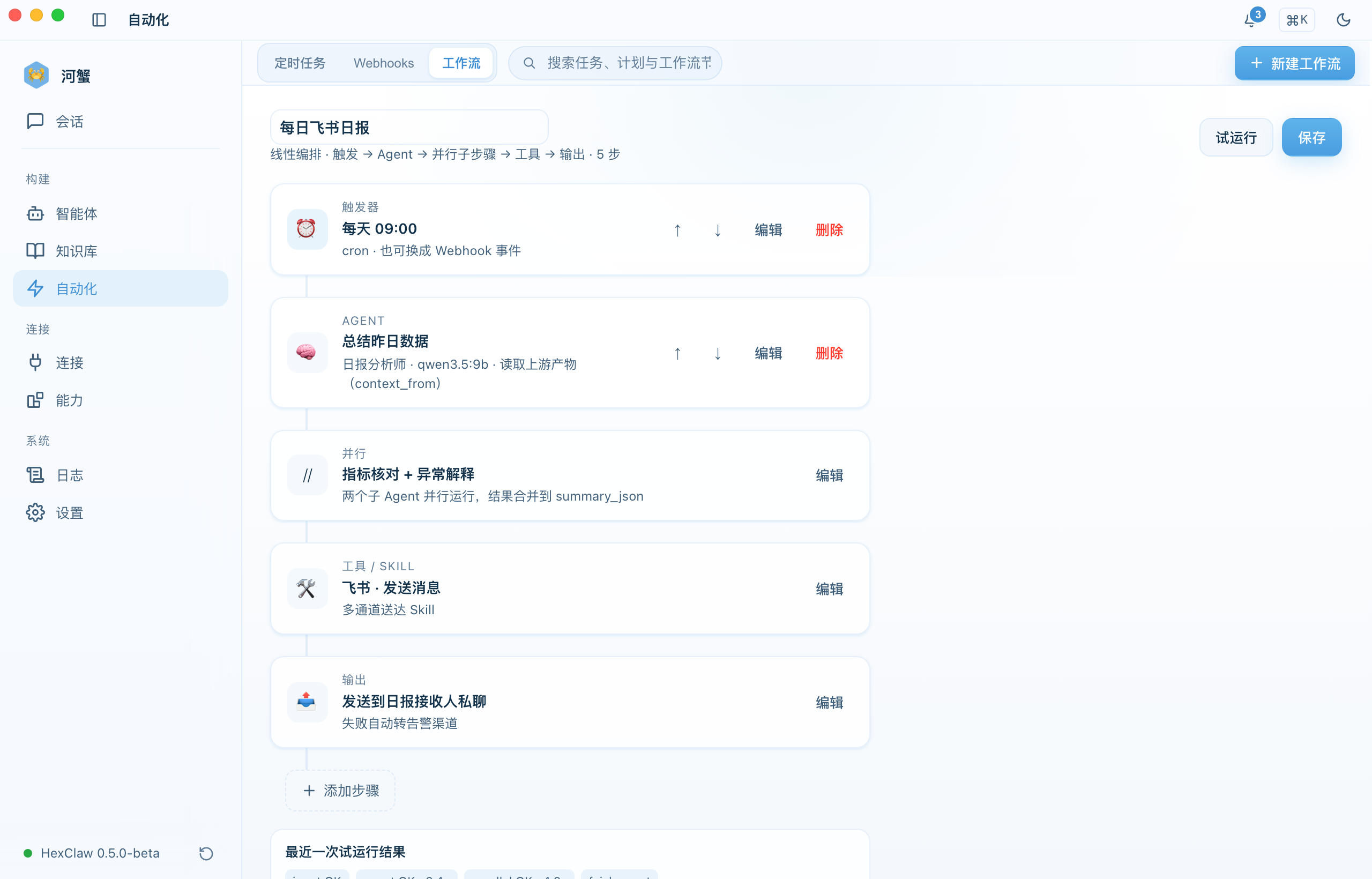
Orchestrate multi-step AI tasks with linear steps under Automation → Workflows.
Overview
Workflows live under the Automation → Workflows tab and are HexClaw's multi-step AI orchestration tool. They use linear steps: break a complex task into a sequence of steps that run in order, passing each step's output to the next.
Step Anatomy
Each step is one agent call and can be configured independently:
| Field | Description |
|---|---|
| Role | The agent / persona used for this step |
| Prompt | This step's instruction; can reference the previous step's output |
| Model | A model chosen specifically for this step |
| Tools | The tools / MCP this step is allowed to call |
Create a Workflow
- Open the Automation → Workflows tab and create a new workflow
- Add steps, then add / remove / reorder them as needed
- Edit each step's role, prompt, model, and tools
- Save the workflow
- Click Dry Run — per-step status is filled back in real time
Execution & Status
At run time, each step executes in order and reports status live:
- ⏳ Waiting — not yet executed
- 🔄 Running — currently executing
- ✅ Completed — executed successfully
- ❌ Failed — execution error
Tip: Workflow execution supports polling, so you can leave the page while a run is active and return later to inspect the result.